 DiskSalvor
From starting DiskSalvor to checking your files: how a rescue goes, what the results mean, and answers to common questions.
Install and start
DiskSalvor runs on Windows 10 and 11. It needs Python, a free program it's written in.
- Install Python 3.9 or newer from python.org. In the installer, tick "Add python.exe to PATH".
- Unzip DiskSalvor into a folder on your computer, for example Downloads. Not on the drive you want to rescue.
- Double-click Run DiskSalvor.bat. A small black window opens (keep it open: closing it closes DiskSalvor) and your browser shows DiskSalvor. If you close the browser tab, press O in the black window to open it again.
- Plug in the drive and pick it under Choose the drive. Windows asks for your OK the first time: reading a whole drive needs it. Disk images don't.
Want to try it first? Unzip demo\DiskSalvor-demo-failing-drive.zip and open the image with Open a disk image. It's a made-up failing drive, so you can watch a whole rescue without risking anything.
For a Start-menu shortcut with the logo, run tools\make-shortcut.bat once.
Rescue it for me
The simplest way: answer four questions, and DiskSalvor runs every step by itself, easiest files first, copying after each step.
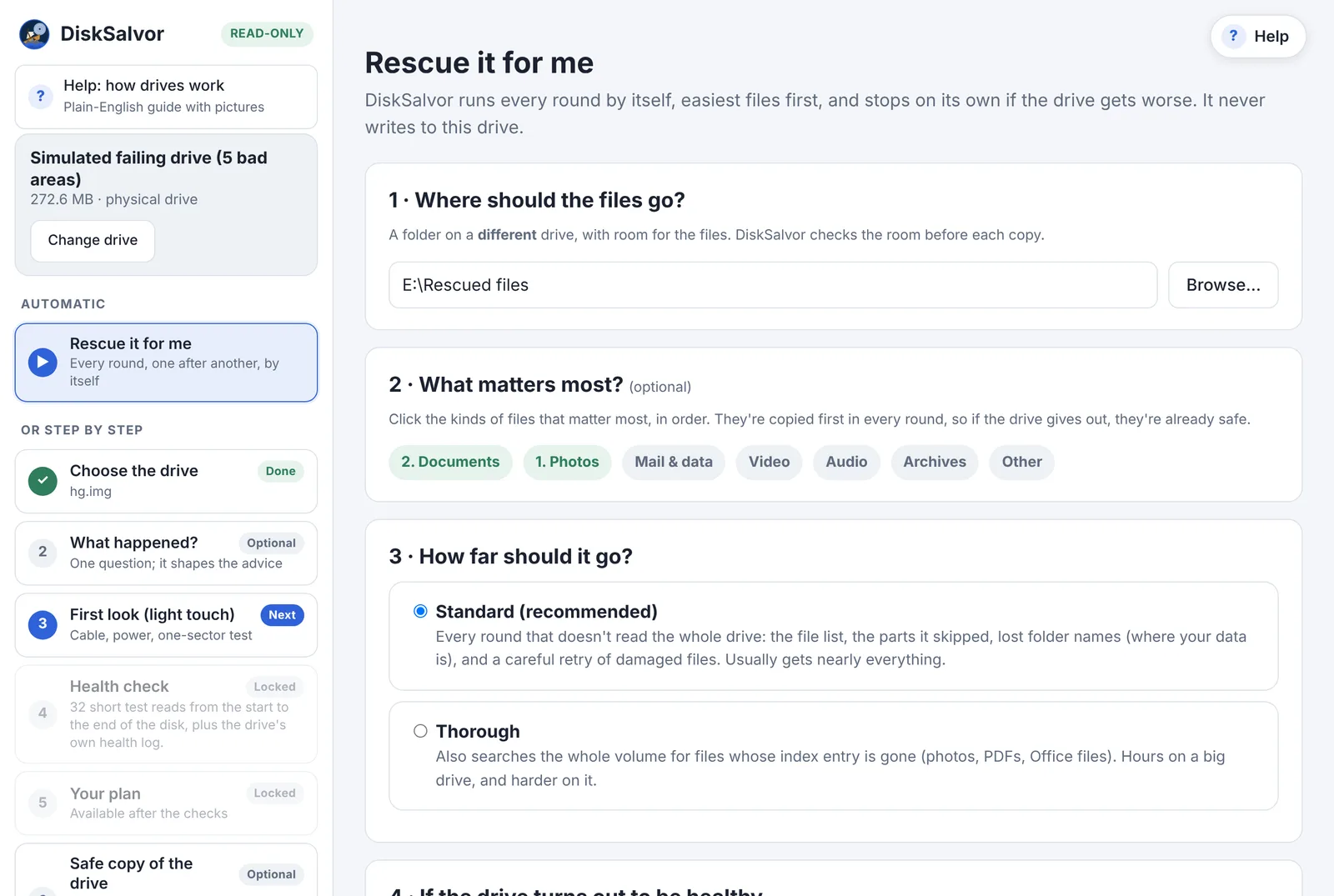
- Where should the files go? A folder on a different drive with room for them. DiskSalvor refuses a folder on the drive you're rescuing, and checks the room before each copy.
- What matters most? (optional) Click the kinds of files in the order you care about them: Documents, Photos... They're copied first in every round, so if the drive gives out, they're already safe.
- How far should it go? Standard doesn't read the whole drive and usually gets almost everything. Thorough also searches the whole drive for files whose index entry is gone: hours on a big drive, and harder on it.
- If the drive turns out to be healthy: stop and say so, or copy the files anyway.
While it runs
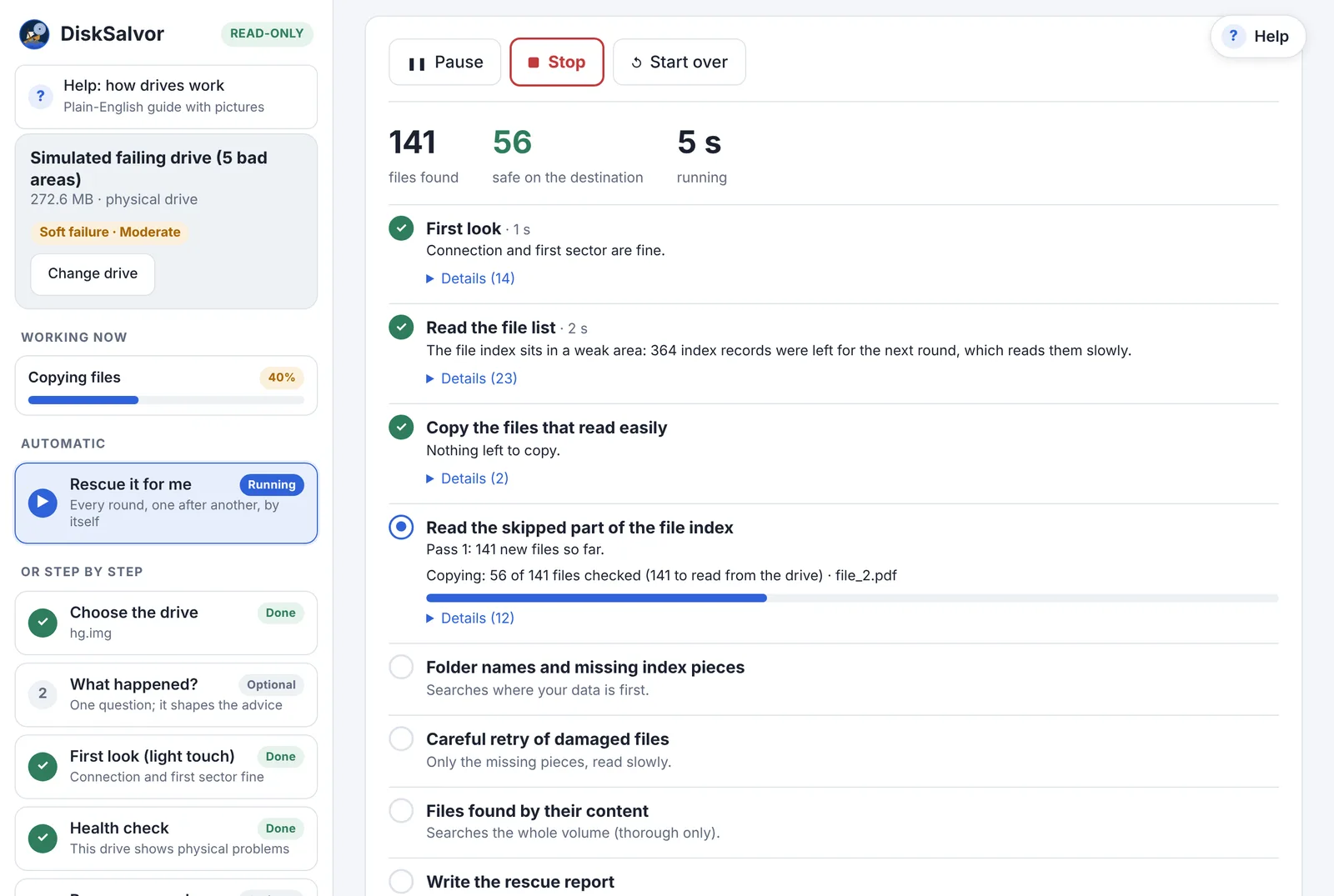
Each step shows what it did, with Details read by read. Pause lets the read under way finish, then waits. Stop stops cleanly; nothing is lost and you can continue later. When the drive keeps hanging, DiskSalvor rests it with a countdown and tries again. It stops by itself if the drive disconnects or gets worse.
When it's done
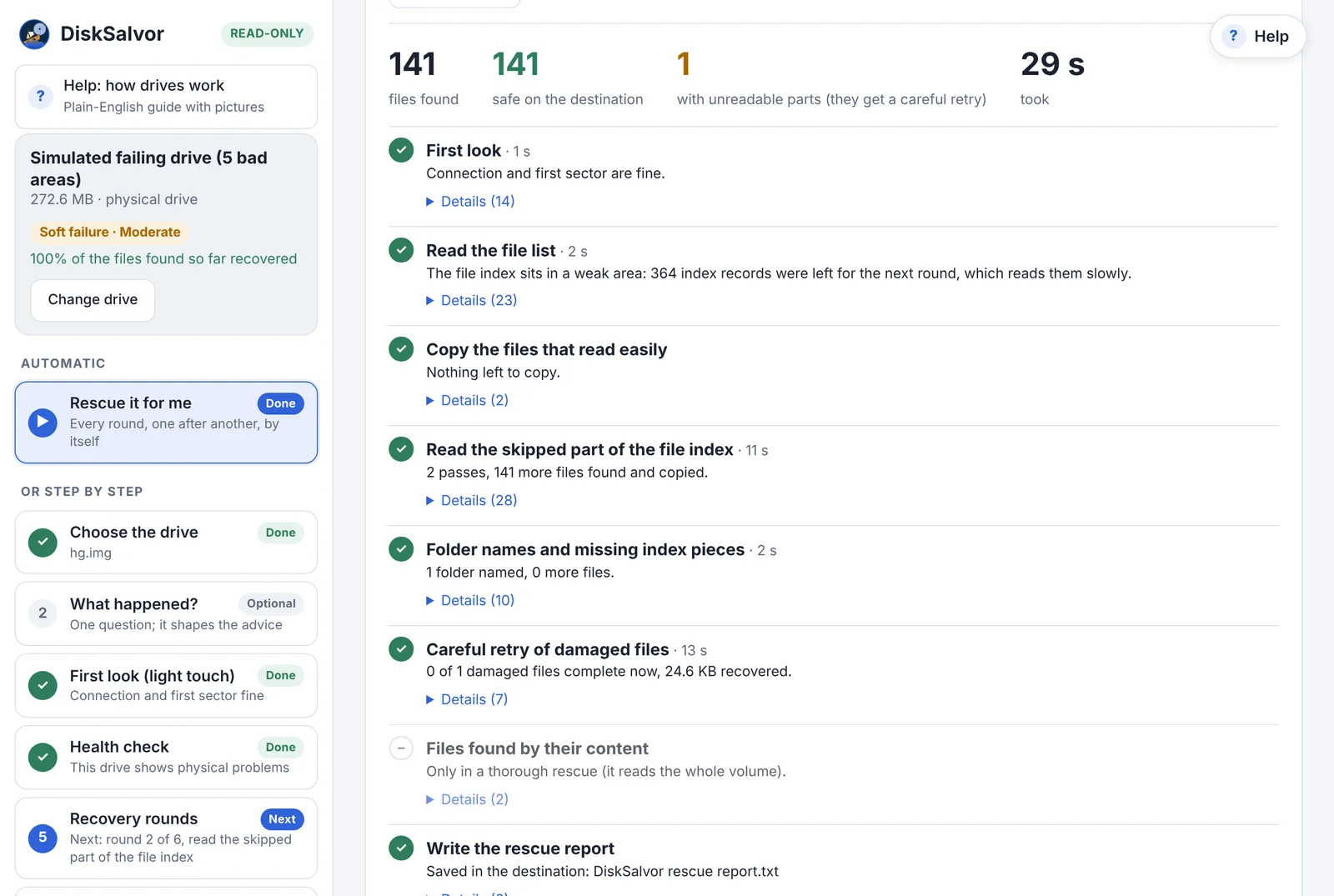
You'll find your files in the folder you chose, with their folders and dates, and DiskSalvor rescue report.txt: what was recovered, what's missing and why, and what to do with the drive now.
Step by step: the rounds
Prefer to start each step yourself? Choose I'd rather go step by step. The left column then shows every step; the one to do next is marked Next.
| Step | What it does | Worth it when |
|---|---|---|
| First look | The drive's health log, what Windows has already logged about the drive, and one timed read. Nothing more until you've seen the result. | Always first. |
| Health check | A few spread-out test reads, the partitions, and the file list (skipping weak spots for later). | Always. Skipped test reads on a drive already known to be failing. |
| 1 · Copy what reads easily | Copies every listed file, most important first, in disk order (less head movement). Weak areas are skipped, not fought. | Always. |
| 2 · The skipped part of the index | Goes back, slowly and piece by piece, for the parts of the file list it skipped. | If files were left out. Repeated while it still finds files. |
| 3 · Folder names and missing pieces | Searches for lost folder names and index pieces, where your data is first. | If you see "Lost folder" entries, or files are missing. |
| 4 · Careful retry of damaged files | Reads only the missing pieces of damaged copies, slowly, and patches them in. | If some files came out damaged. |
| 5 · Files by their content | Searches the whole drive for photos, PDFs and Office files whose index entry is gone. Names and folders can't come back this way. | Only if important files are still missing. Long. |
| 6 · After recovery | (Planned) test, reuse or wipe the drive. | Only once every file you need is safe. |
What the drive's condition means
After the first look, and again as it learns more, DiskSalvor gives the drive a verdict, a severity and what to do. When the verdict changes, it says so.
| Verdict | What it means | What to do |
|---|---|---|
| Healthy | Reads cleanly everywhere DiskSalvor looked, and the health log is clean. | Copy what you need. Nothing special. |
| File system damage | Every sector reads, but the map of the files is damaged (deleted, formatted, or unplugged while writing). The drive itself is fine. | Copy your files off first; repair or reformat only after that. |
| Connection problem | The surface reads fine, but data gets garbled or the drive drops off: cable, port, adapter or power. | Another cable and port; a powered hub for a 2.5" drive. Then carry on. |
| Soft failure | Most of the drive reads; some areas are weak or unreadable. Weak spots often read on a later, slower try. | Easy files first, then the rounds for the weak areas. Replace the drive afterwards. |
| Widespread weak spots | Trouble in many places across the disk, not one or two patches. | Most important files first. Avoid long whole-drive reads. |
| Degrading | New bad spots keep appearing: often a weakening read head. Every hour of use can cost data. | Only your most important files, now. A lab if irreplaceable files are still missing. |
| Physical failure | Clicking, not spinning, not detected, a wrong size, or it keeps disconnecting. | Stop powering it on. Only a recovery lab can help. |
Why a verdict, not just numbers: the same 10 bad sectors can be a one-off scratch or the start of a head failure. The verdict comes from where the problems are, whether they're growing, and what the health log says. How the health log works.
What Windows has seen
Windows keeps its own record of trouble with every drive: bad blocks, reads or writes it had to retry, sudden disconnects. The first look reads that record (nothing is read from the drive for it) and keeps only what happened while this drive was connected: Windows gives disk numbers in the order drives are plugged in, so DiskSalvor checks which drive had the number at the time. Problems grouped in one place point to the drive itself; on a memory card or stick, often where it was last written, which the drive's own tests can't see. Problems spread all over can just as well be the cable, the reader or the power.
Your recovered files
Files keep their names, folders and dates. Files on unreadable spots are copied anyway, with the unreadable parts filled with zeros, and marked damaged so you know which ones to check.
In the destination folder
| File | What it is |
|---|---|
| DiskSalvor rescue report.txt | The summary: what was recovered, what's missing and why, and what to do with the drive. |
| DiskSalvor copy report.csv | Every file with its result. Opens in Excel. |
| DiskSalvor damaged files.txt | The files that still have unreadable parts. The careful retry (round 4) works from this list. |
| DiskSalvor copy log.txt | What each copy did, in order. |
| name.dspart | A file only partly copied when you stopped. The next copy continues it; you can ignore it. |
What each result means
| Result | Meaning |
|---|---|
| ok | Copied whole: every piece read without a problem, and its size checked against the drive. |
| skipped | Already there from an earlier copy (same size and date), or moved into the folder found for it since. |
| damaged | Copied, but parts couldn't be read (or the file's map is incomplete). Those parts are zeros. Round 4 can often fill them in. |
| failed | Couldn't be written to the destination (full, or not allowed). The reason is in the report. |
| incomplete | You stopped part-way. The next copy continues it. |
If a file of yours with the same name is already in the folder, DiskSalvor never replaces it: the copy is saved next to it as name (recovered).ext, and the report says so.
Files Windows stored compressed (NTFS compression) are unpacked as they're copied. Files Windows stored encrypted (EFS) are copied as they are on the drive: they open only on the Windows account that encrypted them.
File types: what knowing a type adds
DiskSalvor rescues every file it finds, whatever its type. A file of a type DiskSalvor has never heard of comes back exactly like a photo does. Knowing a type doesn't decide whether a file is rescued; it opens up more ways to find it and handle it:
| What DiskSalvor knows about a type | What that adds |
|---|---|
| Its name (the extension, like .jpg) | It's sorted into a group, so you can choose, say, Photos first: on a failing drive, what's copied first is most likely to come back. It's counted on the rescue screen. |
| Its first bytes (its signature) | It's recognised even when the name is wrong or missing, and a copy that doesn't look like what its name says is easier to spot as damaged. |
| Where a file of that type ends | It can be found by its content when the drive has lost its entry in the file index (it comes back without its name). Today: JPEG, PNG, GIF, PDF, and ZIP (which includes Word, Excel and PowerPoint files). |
By name: the groups
| Group | Extensions |
|---|---|
| Documents | .csv · .doc · .docx · .eml · .key · .md · .msg · .numbers · .odp · .ods · .odt · .one · .pages · .pdf · .ppt · .pptx · .rtf · .txt · .xls · .xlsx |
| Photos | .arw · .bmp · .cr2 · .cr3 · .dng · .gif · .heic · .heif · .ithmb · .jpeg · .jpg · .nef · .orf · .png · .psd · .raw · .rw2 · .tif · .tiff · .webp |
| Video | .3gp · .avi · .m2ts · .m4v · .mkv · .mov · .mp4 · .mpeg · .mpg · .mts · .webm · .wmv |
| Audio | .aac · .aiff · .flac · .m4a · .mp3 · .ogg · .wav · .wma |
| Archives | .7z · .bz2 · .cab · .gz · .iso · .rar · .tar · .xz · .zip |
| Programs | .bat · .cmd · .com · .dll · .drv · .exe · .msi · .mui · .ps1 · .sys |
| Mail & data | .accdb · .db · .kdbx · .mbox · .mbx · .mdb · .ost · .pst · .qbw · .sqlite |
Everything else is rescued under "Other". Common types without a group of their own (settings, logs, program code, web pages, fonts, shortcuts) count as known; the rest are listed as new to DiskSalvor, so they can be sent in.
By content: what the first bytes say
Most file types start with a few fixed bytes, a "signature" (a JPEG photo starts FF D8 FF, a PDF with %PDF). DiskSalvor recognises these:
| Group | Recognised by their first bytes |
|---|---|
| Documents | DjVu document · PDF document · Rich Text document · PostScript document · Encapsulated PostScript (with preview) · Microsoft Office 97-2003 / Outlook message / other OLE file · Windows help (CHM) · Kindle / Mobipocket e-book |
| Photos | JPEG image · PNG image · GIF image · Windows bitmap (BMP) · Photoshop document · JPEG 2000 image · JPEG XL image · Fujifilm raw photo · Olympus raw photo · Panasonic raw photo · Canon raw photo (old) · Minolta raw photo · GIMP image · OpenEXR image · DICOM medical image · HEIC photo (iPhone) · HEIC photo · HEIF image · HEIF image sequence · AVIF image · Canon raw photo (CR3) · WebP image · Amiga image · TIFF image (also many camera raw photos: NEF, ARW, DNG) · Canon raw photo (CR2) |
| Video | Matroska / WebM video · Windows Media (ASF: WMV/WMA) · Flash video · MPEG video (program stream) · MPEG video · QuickTime video · MP4 video · iTunes video · 3GP phone video · 3GP2 phone video · Flash video (F4V) · MPEG-DASH video · Sony video · AVI video · MPEG transport stream video (camcorders, TV recordings) |
| Audio | MP3 audio (with tags) · FLAC audio · Ogg audio/video · MIDI music · AMR voice recording · Sun/NeXT audio · Monkey's Audio · WavPack audio · DSD audio · AAC audio · Audiobook · iTunes audio (protected) · WAV audio · CD audio track · AIFF audio · AIFF audio (compressed) · Amiga audio · MP3 audio |
| Archives | ZIP archive (also Word/Excel/PowerPoint, OpenDocument, EPUB, JAR, APK) · ZIP archive (empty) · RAR archive · RAR 5 archive · 7-Zip archive · gzip archive · bzip2 archive · xz archive · Zstandard archive · Microsoft cabinet · ARJ archive · LHA archive · TAR archive · Windows image (WIM) |
| Programs | Windows program or library (EXE/DLL) · Linux program (ELF) · Java class / macOS universal program · macOS program (Mach-O) · Android program (DEX) · WebAssembly |
| Mail & data | Outlook mail file (PST/OST) · SQLite database · Access database (MDB) · Access database (ACCDB) · KeePass password database · KeePass 1 password database · Contact card (vCard) · Calendar (iCalendar) · Outlook Express mail (DBX) · Windows Live / Outlook Express data |
| Other | Windows icon · Windows cursor · DirectDraw texture · Virtual hard disk (VHD) · Virtual hard disk (VHDX) · VMware virtual disk · QEMU virtual disk · Apple disk image · Apple installer package · Debian package · RPM package · Windows shortcut · Windows registry hive · Windows event log · Type library · Program debug database · TrueType font · OpenType font · Web font (WOFF) · Web font (WOFF2) · BitTorrent file · Apple binary property list · HDF4 data · HDF5 data · AutoCAD drawing · 3D model (STL, text) · 3D model (FBX) · Blender 3D scene · Animated cursor |
Plus plain text, XML, HTML, JSON, e-mail and mailbox files, recognised by what the text looks like. The signatures come from public format specifications and public references (the file command's magic list, the UK National Archives' PRONOM registry, Gary Kessler's signature table).
Teaching DiskSalvor a new type
On Rescue it for me, open File types: types that are new to DiskSalvor are listed (already rescued, like everything else) with what their first bytes say, taken from a copy already on your destination (nothing more is read from the drive). Send these types to the DiskSalvor team opens an e-mail in your own mail program with the extensions, how many files have each, the guess, and the first 16 bytes of one file each. Never file names. You see the e-mail before it's sent; for text files those 16 bytes can be readable words, so check them.
Safe copy: an image of the whole drive
A safe copy reads the drive once, easy parts first, into one big file (an image) on a healthy drive. After that, everything else happens on the copy, and the failing drive can be unplugged.
When to make one
When the drive is degrading, or when you expect to need several passes (a search by content, say): every pass on the copy is a pass the failing drive doesn't have to survive. For a drive with a few weak spots, the rounds above are usually enough.
Room it needs
Only your data copies the used parts of the drive. On an NTFS destination that takes about as much room as the data; exFAT and FAT32 can't store the empty parts as nothing, so they need the drive's full size. Everything always needs the full size.
Stopping, resuming, and what DiskSalvor remembers
Everything DiskSalvor learns about a drive is saved as it goes: the file list, which areas are unreadable or weak, what was copied where. When you open the same drive again, it offers to pick up from there, without reading anything from the drive.
- Stop any time with Stop, or quit with Q in the black window. Closing the laptop is fine too.
- Next time, open the same drive. Choose Use the saved results, then continue the rescue where it stopped. For a card, a stick or a drive without a serial number of its own, DiskSalvor first shows the drive the notes came from and asks whether it's the same one; it also compares the drive's first sectors, and never offers one drive's notes to another.
- To start from zero (for a test), use Start over and tick forget what was learned. The old notes are kept as a dated backup.
- To delete the notes for good (when you hand a drive back to its owner), use Reports & exports › Delete for good. Your recovered files aren't touched.
The notes are in DiskSalvor data, next to Run DiskSalvor.bat (you can choose another folder on the first run). Each run also writes DiskSalvor log.txt; older logs move to DiskSalvor logs.
Is it safe? What DiskSalvor never does
- It never writes to the drive it rescues. Every command it sends to a drive passes an allow-list first: reading sectors, and reading the health log. Anything else is refused before it leaves DiskSalvor.
- It never copies onto the same drive. A destination on the drive being rescued is refused, and so is one Windows can't confirm is elsewhere.
- It never replaces your other files. A file of yours with the same name gets the copy saved next to it, as name (recovered).ext. A safe copy won't replace a file that isn't one of its own copies of this drive. The careful retry (round 4) leaves alone any copy you have opened and saved since.
- Nothing leaves your computer, and only the browser tab DiskSalvor opened can use it: other websites, and other programs on your computer, are refused.
- It doesn't fight a failing drive. Its own time limit on every read (seconds, not Windows' minutes), weak areas skipped and tried last, and it stops when the drive gets worse.
One detail for experts: to ask a drive how long it retries a bad sector (Drive tests › Identify), DiskSalvor uses the drive's SCT command mailbox. Technically that's a "write log" command, but it goes to the drive's command mailbox, writes no sector of your data and changes no setting.
For staff: rescuing other people's drives
A routine for help desks and anyone who rescues drives for others. It keeps the drive safe before DiskSalvor even starts, and leaves nothing of the owner's behind afterwards.
- Before you plug the drive in, stop Windows from opening it. When Windows mounts a damaged NTFS drive it replays the drive's journal, which writes to it, and Explorer, search indexing and antivirus all start reading it. Connect your destination drive first, then in a Command Prompt run as administrator type
mountvol /N(new drives don't get mounted). DiskSalvor reads the drive directly and doesn't need it mounted. Afterwards,mountvol /Eturns it back on. Never click Format, or Scan and fix. - Connect it straight to the computer: no hub, a good cable, and its own power supply if it has one.
- Start DiskSalvor, pick the drive and read the first-look verdict.
- Healthy, or a few weak spots: Rescue it for me, into a new, empty folder on a different physical drive.
- Degrading, clicking, or getting worse: stop, and decide between a safe copy and a recovery lab.
- Check the result: open a sample of the recovered files, above all the ones listed as damaged.
- Hand the files over, then delete what DiskSalvor kept about the drive: Reports & exports › Delete for good.
Questions and problems
It says Python isn't installed.
Install it from python.org (tick "Add python.exe to PATH"), then double-click Run DiskSalvor.bat again.
The browser didn't open, or I closed the tab.
Press O in DiskSalvor's black window: it opens DiskSalvor in your browser again.
It says "Open DiskSalvor from its window".
For your safety, DiskSalvor only works with the browser tab it opened itself, so another program on your computer can't use it. Press O in its black window.
My drive isn't in the list.
Press Refresh. If it still isn't there, Windows doesn't see it either: see What's wrong with your drive? (Not detected).
Windows offers to format or scan the drive while DiskSalvor runs.
Click Cancel. Windows pop-ups: what to click.
The drive disconnected in the middle.
Everything so far is kept, and the file being copied when it dropped is never left with zeros in it: it's copied again next time. Plug the drive straight into the computer (no hub) and press Reconnect, or open it again in DiskSalvor, and continue. DiskSalvor checks that it's the same drive and keeps what it learned (its weak spots aren't read again). If it keeps disconnecting, try another cable; for a 2.5" drive, a powered hub.
Can I look at a file before copying it?
Yes: Preview, next to a file in the list, shows photos, PDFs, text, music and video. A file already copied whole is shown from your rescue folder, so the drive isn't read at all. Otherwise a preview reads the file from the drive; on a drive with weak spots DiskSalvor asks first, because copying the file later reads it again. Web pages and drawings from the drive are shown as text, never run.
It's very slow.
On a failing drive that's normal and deliberate: weak spots get a short, patient try instead of minutes of hammering. Copies of healthy areas run at the drive's normal speed.
Can I use the computer meanwhile?
Yes. Just don't open the failing drive in Explorer or another program: two programs reading at once make a weak drive work harder.
A file came out damaged. Can it be fixed?
Run round 4 (careful retry of damaged files): it reads only the missing pieces again. Pieces that never read are zeros; many photos and documents still open with a small flaw.
How do I report a problem?
Email hello@disksalvor.com or open an issue on GitHub. DiskSalvor log.txt helps most; it contains your file names, so look through it before sending.
Last updated 2026-11-09 · Something wrong or unclear on this page? Tell us.